How to adjust photo brightness and contrast online
Adjust exposure, contrast, shadows, and highlights in the browser with a practical workflow, clear limits, and a real product preview.
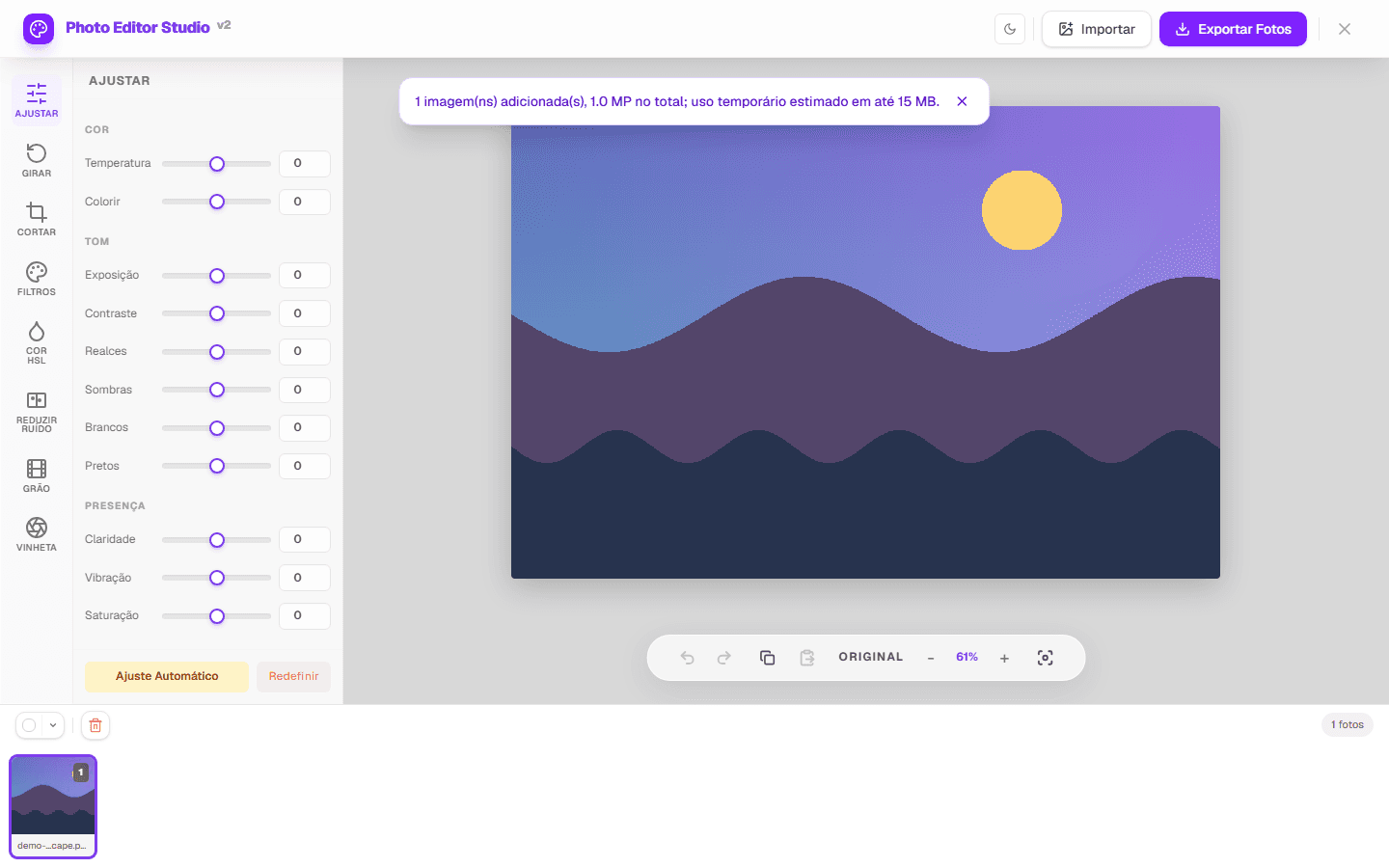
Adjusting brightness and contrast online can correct a photo that is dark, too bright, or tonally flat. In PhotoEditor.Studio, the Adjustments panel includes exposure, contrast, highlights, shadows, whites, blacks, and other controls; the browser preview updates as you edit.
Brightness, exposure, and contrast are not the same
Exposure multiplies luminance and is a useful starting point for a global correction. Contrast increases or reduces the difference between light and dark tones. Highlights and shadows place more weight on bright or dark regions; whites and blacks refine the tonal endpoints.
These controls calculate new pixel values; they do not recover data that is absent. A completely white or black area may contain no detail to reveal. Brightening shadows can also make noise and compression more visible.
| What you see | Try first | Sign of excess |
|---|---|---|
| Entire photo is dark | Exposure | Highlights lose detail |
| Dark face, bright background | Shadows | Noise or washed-out tones |
| Flat image | Contrast | Blocked blacks and clipped whites |
| Sky or window is too bright | Highlights | Artificial gray in bright areas |
A reproducible six-step workflow
- Open the image. Use a compatible file or the demo on the Adjust photo page.
- Observe before moving controls. Decide whether the problem affects the whole image, the bright tones, or the dark tones.
- Correct global exposure. Make a small change while preserving detail in the brightest regions.
- Refine highlights and shadows. Inspect noise, skin, and edges as you adjust each region.
- Set contrast, whites, and blacks. Compare with the original to avoid an artificial result.
- Export a copy. Choose JPEG or PNG; WEBP output appears only when the browser supports encoding. Resizing is optional.
The central canvas should reflect the change during editing. With large images, response time varies with decoded pixels, memory, browser, and device.
How to evaluate the result
Night or indoor photo
Raise exposure carefully, then inspect the shadows. If grain becomes visible, balance improved visibility against lost texture; the available noise reduction is a simple filter and does not reconstruct detail with artificial intelligence.
Backlit subject
Raising shadows can reveal the foreground without brightening the background by the same amount. The control does not recognize people or create a subject mask.
Image for the web
Inspect the result near its intended display size. JPEG is re-encoded and may introduce loss; PNG preserves transparency and is often larger; WEBP depends on support detected in the browser.
Current limits and how we verify behavior
- There is no universal file-size promise: practical capacity depends on pixels, memory, and browser.
- The editor is not a RAW developer and does not offer an advanced ICC profile workflow.
- Metadata such as EXIF may not be retained after export.
- Animated GIF is handled as a static image; GIF and BMP are not output formats.
- Pixel processing runs in the browser, but the page may connect to site services and dependencies.
Automated tests use controlled project images to confirm real pixel changes, the central preview, and exported format signatures. The screenshot at the top was generated from the running interface, not a mockup.